
How to Create Pinterest Pins for Amazon Products in Minutes
Create Pinterest Pins for Amazon products in minutes and keep your Associates account safe: links, images, disclosures and a step-by-step walkthrough.
By Pedro Campos
 Supapin
Grow your traffic with Pinterest
- Turn your pages into pins
- Rank in Pinterest search
- Drive clicks back to your site
No credit card required
You can create Pinterest Pins for Amazon products in minutes. Keeping those Pins live, and keeping your Amazon Associates account safe, takes a few rules most guides skip.
Most Amazon Pins don't fail because they look bad. They fail because of a price on the image, a shortened link or a missing disclosure. So this guide covers both halves: the rules, quoted from Amazon's and Pinterest's own pages, and a screen-by-screen walkthrough that takes one real product from Amazon link to scheduled Pin.
How to create Pinterest Pins for Amazon products: the short version
Copy your tagged Amazon link, design a vertical Pin with an image you're allowed to use, write a description that opens with a disclosure, and publish it to a board that matches the product.
In practice, that's five steps:
- List your Pinterest profile in your Amazon Associates account.
- Copy the full affiliate link for the product from Amazon's SiteStripe toolbar.
- Design a 2:3 vertical Pin with a photo you're allowed to use and no price on it.
- Write a searchable title and a description that starts with your disclosure.
- Publish to a relevant board, and space out new designs for the same product over a few weeks.
Each section below expands one of these, and the walkthrough shows the whole thing in Supapin.
What do you need before you pin Amazon products?
You need an approved Amazon Associates account with your Pinterest profile listed on it, a Pinterest business account, and Amazon's disclosure in your bio.
Amazon's Operating Agreement counts your social media content as part of your "Site," so Pinterest needs to be in the website and app list in your Associates settings before you share a single link.
Amazon also requires the line "As an Amazon Associate I earn from qualifying purchases." For social media, Amazon's disclosure help page says that statement must be associated with your account. Your Pinterest bio is the natural home for it. Mine reads something like: "Kitchen gadgets I actually use. As an Amazon Associate I earn from qualifying purchases."
That covers Amazon's account-level rule. Each Pin still needs its own disclosure, which we'll get to.
Should your Pin link straight to Amazon?
You can link a Pin straight to Amazon, but pick the route based on whether the product needs explaining.
| Route | Best for | What you need | Who adds the disclosure | Trade-off |
|---|---|---|---|---|
| Pin links straight to Amazon | Single products, quick tests | Associates account | You | No room to explain or compare |
| Pin links to your blog post or gift guide | Reviews, roundups, seasonal guides | A site with original content | You, on the Pin and the page | More work per product |
| Amazon product tagged on the Pin | Amazon Influencer Program creators | Business account, Influencer Program, a Storefront | Pinterest, automatically | Only for eligible creators |
The ice cream maker I use as the example below works fine as a direct Pin. A "summer dessert gadgets" roundup on your own blog works better as a blog Pin, because it can compare three machines side by side.
Which link should you paste?
Paste the full tagged link from SiteStripe, the toolbar Amazon shows signed-in Associates on product pages.
Amazon's program policies ban any link shortener that makes it unclear you're linking to Amazon. Pinterest's community guidelines ask for a "no surprises" link that people can predict, and say shorteners abused for spam may be blocked.
Amazon's own amzn.to links aren't the kind Amazon warns about, but I still use the full link as the destination. In June 2026 one creator reported their whole domain blocked and blamed amzn.to redirects. That's one case, not a confirmed rule, and the full link costs you nothing.
How do you link your Amazon Storefront to Pinterest?
If you're in the Amazon Influencer Program and have a Storefront, connect it in your Pinterest settings. From then on, Pinterest adds your affiliate link and an affiliate disclosure whenever you tag an Amazon product.
Pinterest launched Amazon Storefront linking in June 2026. According to Pinterest Help, you need a Pinterest business account, Influencer Program membership and a Storefront. To connect:
- Open Settings and choose Link to Pinterest.
- Select Link next to Amazon Storefront.
- Click Link accounts and follow the prompts.
Your Storefront then shows on your Pinterest profile. There's also an auto-sync option on the Storefront side that posts your Pins from the past year with an Amazon link or tag to your Storefront.
Pinterest's help page mentions US, Canadian and Brazilian accounts, so check it's available where you are. Amazon now accepts Pinterest accounts when you apply to the Influencer Program.
Tagging handles the link and the disclosure. You still need a Pin worth tagging.
Can you use Amazon product photos on Pinterest?
Treat Amazon's product photos as a risk. Amazon's program policies, updated April 14, 2026, license its content for display on your own Site and bar using it on platforms that require you to sublicense it.
Why the price never goes on the Pin
Amazon only allows prices when Amazon serves them or when they come from its official product data API, with strict refresh and timestamp rules. A Pin can't refresh. It keeps circulating for months while the price changes underneath it, so leave the price off the image and out of the description.
What image should you use instead?
| Image option | Risk | What to watch |
|---|---|---|
| Your own photo of the product | Lowest | Real-use shots tend to feel more trustworthy |
| A styled shot you took | Low | The product should be easy to spot |
| An AI-generated scene around the product | Medium | Size, color and features must match the real item |
| Amazon images through Amazon's Creators API | Depends | Needs approved access and follows refresh rules |
AI scenes need care. Pinterest's updated community guidelines, effective November 12, 2026, list AI media that misrepresents a product as a deceptive practice.
For the ice cream maker, a phone photo of a swirl I made at home beats the white-background listing shot, and it's mine. You'll pick images in Step 4 below.
How do you create Amazon product Pins in Supapin, step by step?
Sign up, connect Pinterest, choose Create Pins and then From URL, paste the Amazon product link, and fix each draft's image, title, description and link before you publish or schedule it.
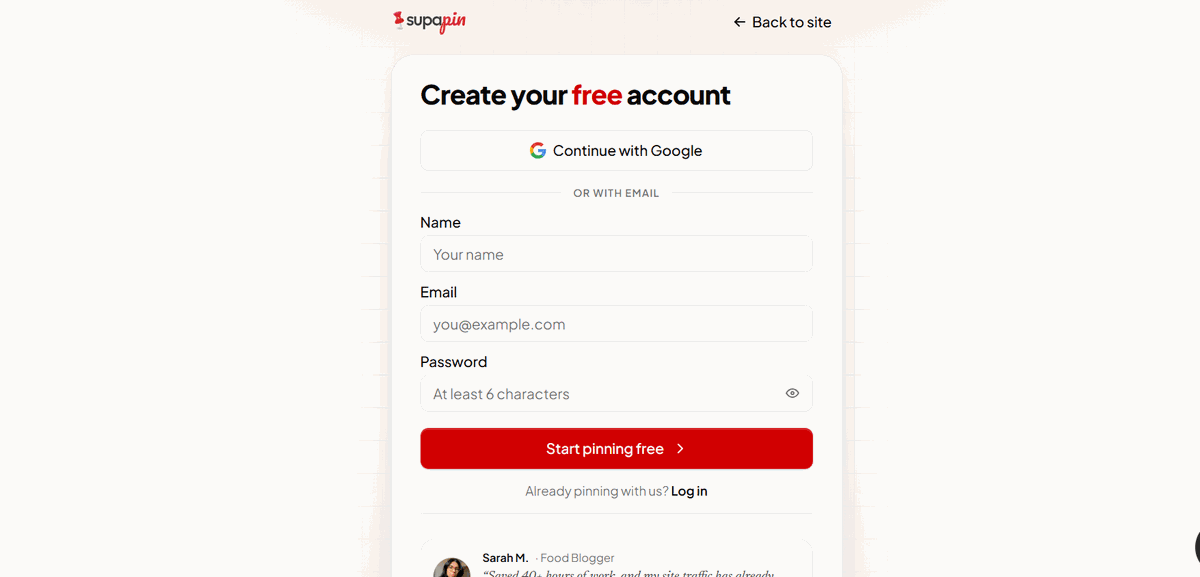
Step 1: Create a free account
Sign up with Google, or with your name, email and a password.
Step 2: Open the dashboard and connect Pinterest
Right after you sign up, Supapin walks you through a short welcome where you can connect Pinterest. If you skip it, or come back later, click Dashboard on the site and use Connect Pinterest at the top of the sidebar.
Do this first: later, the Board field stays locked with "Select a Pinterest account first" until you've connected.
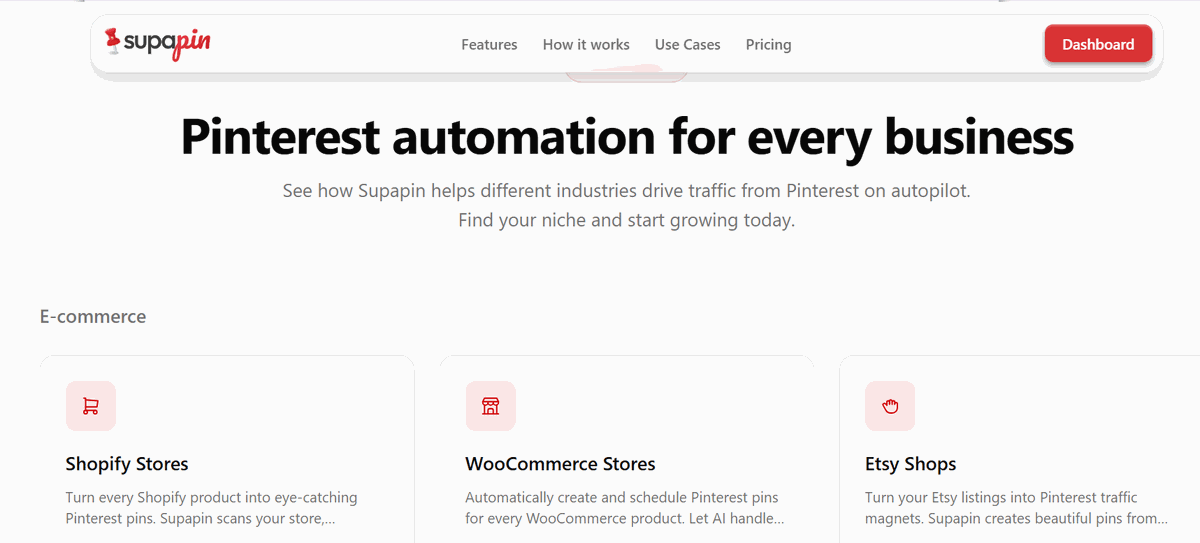
Creating Pins is free. Publishing, scheduling and downloading use credits, and your balance sits at the bottom of the sidebar.
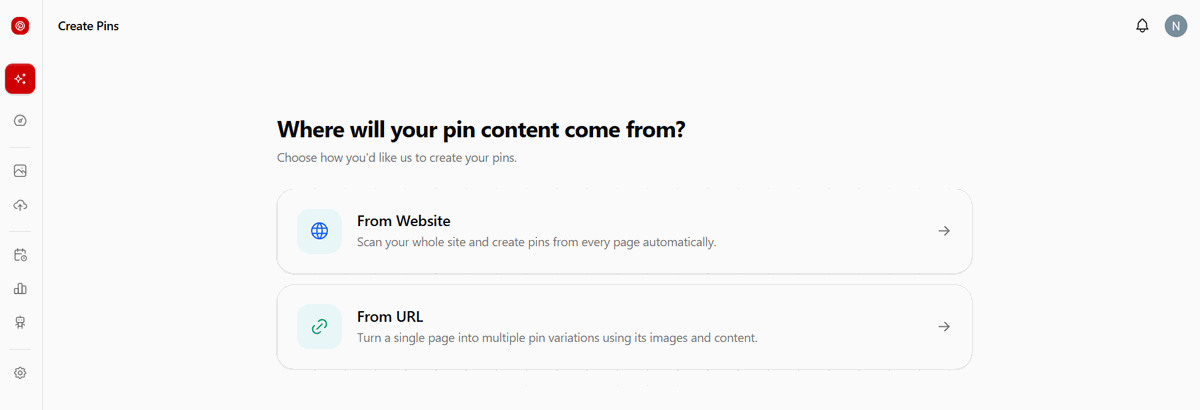
Step 3: Choose Create Pins, then From URL
In the sidebar, open Create Pins. Supapin asks where your Pin content comes from. From URL turns one page into several Pin variations using its images and content, which is exactly what you want for a single Amazon product. If you write your own review posts, From Website scans your whole site instead.
Step 4: Paste the Amazon link and set up your Pins
Supapin reads the product page and fills the Pin setup panel: Page URLs, Images, Templates, Brand and Font, plus a counter for how many Pins to generate. On my test it pulled 16 images from the listing, offered 6 templates and was set to make 8 Pins.
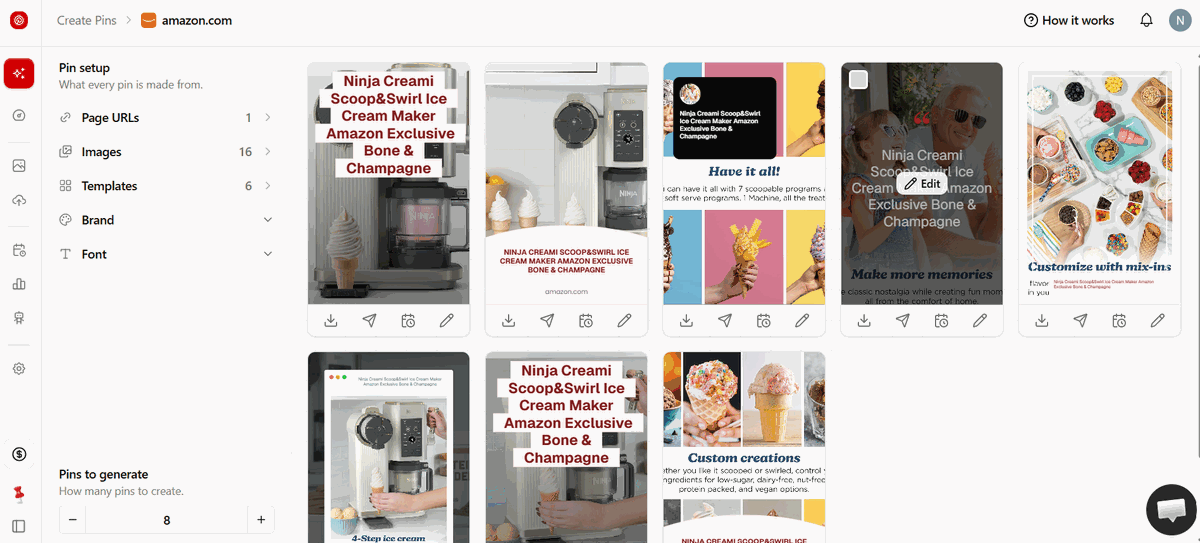
Two settings deserve a minute here. In Images, choose which photos the Pins use and add your own where you have them, for the reasons in the photo section above. Then set Brand and Font once so every Pin looks like yours.
Step 5: Edit every draft before it goes live
Click the pencil on a Pin to open Edit Draft Pin. You'll see Title, Description, Destination URL and Board. Here's what Supapin filled in on my test, and you can edit any of it:
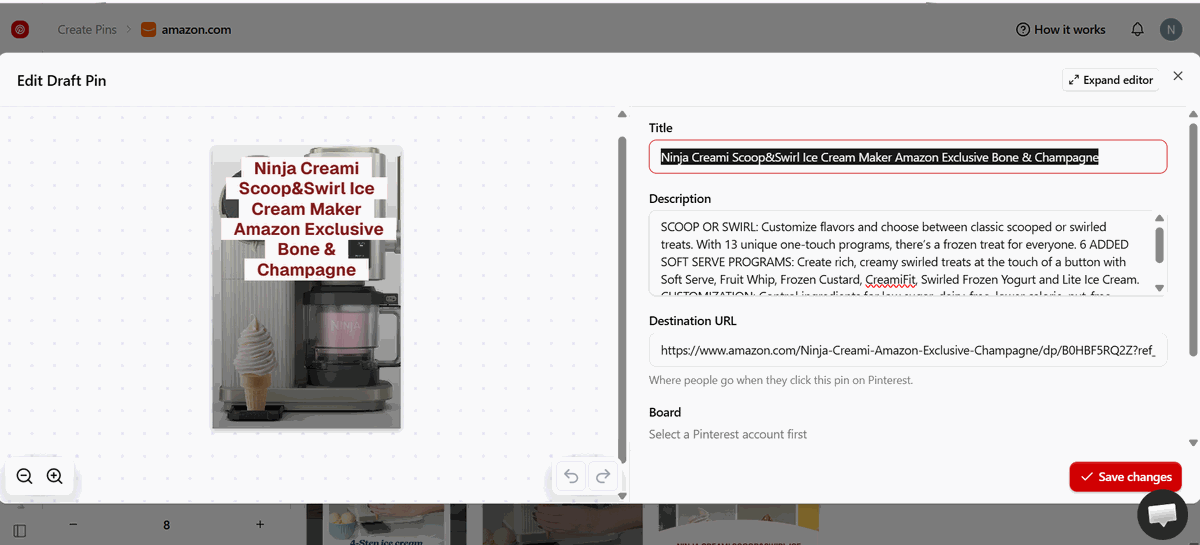
| Field | What Supapin filled in |
|---|---|
| Title | The full Amazon product name, "Ninja Creami Scoop&Swirl Ice Cream Maker Amazon Exclusive Bone & Champagne" |
| Description | The listing's bullet copy, starting "SCOOP OR SWIRL" |
| Destination URL | An amazon.com product link |
Then click Save changes.
Step 6: Publish, schedule or download
Each Pin has four icons underneath: download, publish, schedule and edit. I don't publish all eight at once. I schedule my best two or three a few weeks apart, and if you're unsure which slots to pick, here's the best time to post on Pinterest.
What should an Amazon Pin's title and description say?
Lead the title with what people search, open the description with your disclosure, and say who the product helps without prices, deal text or star ratings.
Before writing, check what people actually type into Pinterest. A Pinterest keyword research tool shows you the phrasing. Then shape the title around one of these patterns:
| Pattern | Example title |
|---|---|
| Gift idea | Gift Ideas for Dessert Lovers Who Have Everything |
| Problem it solves | Soft Serve Ice Cream Maker for Home |
| Comparison | Ninja Creami vs Classic Ice Cream Maker |
Here's the description I used: "Affiliate link: I earn a commission if you buy through this Pin. Can't agree on scooped or soft serve? This machine makes both, with one-touch programs for swirled treats and classic pints."
The disclosure goes first for a reason. The FTC's Disclosures 101 guide says disclosures get missed when they sit only on a profile, at the end of a post or in a pile of hashtags, and that a platform's disclosure tool shouldn't be your only one.
Leave off:
- Specs that don't match the listing.
- Deals and discounts. Amazon requires you to remove promo mentions once the promotion ends.
- Star ratings, which Amazon only allows through its API.
If you want the bigger picture on how Pins rank, our guide to Pinterest SEO in 2026 covers titles, descriptions and boards.
How many Amazon Pins can you post without looking spammy?
Pinterest doesn't set a daily number, but it asks you to use affiliate links in moderation, so publish a few strong designs per product spread over weeks.
Its affiliate guidelines name creating affiliate Pins repetitively or in large volumes as a problem, and its spam rules only allow automation Pinterest has approved. Supapin publishes through Pinterest's official API with access Pinterest approved, but approval isn't a license to flood your boards. Some guides recommend 10 to 20 affiliate Pins a day. I wouldn't.
For the ice cream maker, I scheduled three of the eight drafts two to three weeks apart, between Pins that link to my own content. If you promote a lot of products, Supapin's Autopilot can take a list of product links and prepare a weekly batch at the pace you set, from one to ten Pins a day, and nothing goes out until you approve it.
If a Pin has already been flagged, here's how to handle Pinterest violation notices.
How do you know which Amazon Pins make money?
Give Pinterest its own Amazon tracking ID, then compare Pinterest outbound clicks with that ID's orders.
Create the tracking ID in your Associates account and use it in every Pinterest link, so Pinterest sales show up on their own in Amazon's reports. Supapin's Analytics page shows impressions, saves and clicks, with a breakdown for your top Pins. If a Pin gets plenty of outbound clicks but few orders, it's attracting the wrong buyer. Change the angle, not the design.
Start with one product
Pick one product you'd recommend anyway. Make three good designs with your own photo, put the disclosure first, use your full tagged link, and space them out. Then check which one earns the click.
Want to try it? Sign up and run From URL on that product. Not ready for an account? The free affiliate Pin generator makes six designs from an Amazon link with no signup.
Ready to grow your traffic with Pinterest?
Turn the pages you already have into pins that send traffic back to your site.
Start for freeRelated Posts
Pinterest SEO in 2026: How Pinterest Actually Decides Which Pins Get Found
How Pinterest search works in 2026: where keywords count, why the image and board matter, and what your website has to do with ranking.
BlogToPin vs Pinterest Scheduler vs Supapin: Which Fits You?
Pinterest's native scheduler, BlogToPin and Supapin compared: what each one automates, real pricing, and a straightforward way to decide which fits your workflow.
Tailwind vs Pin Generator vs Supapin: Which Fits Your Workflow?
A practical comparison of Tailwind, Pin Generator and Supapin: what each tool automates, what you still manage yourself, and which workflow fits your site.